WordPress Tips
WordPress Security Checklist for Malaysian Businesses
How to secure a WordPress website in Malaysia: the 14 checks I run on every client site, from logins and plugins to backups, and what each one prevents.
 By Zahid Aramai
Every month I clean up at least one WordPress website that was built well, launched proudly and then left alone. The pattern is always the same: a plugin that stopped getting updates, an admin account called “admin” with a password from 2019, a hosting plan shared with forty strangers, and no backup anyone can find. The site starts redirecting to a betting page, Google flags it, and the owner finds out from a customer.
This is the checklist I run on every site I build and every site I take onto the Website Care Plan. It is written for a business owner, not a developer. You can do most of it yourself in an afternoon, and the items you cannot do are marked.
Start with the three things that cause most hacks
Before the long list, understand where the risk actually sits. In the sites I have cleaned up, the entry point was almost always one of these three.
Outdated plugins and themes. WordPress itself is updated automatically on most hosts. Plugins are not, and a plugin with a known vulnerability is the single most common way in. The attacker does not target you; a script scans the internet for sites running that plugin version.
Weak or reused passwords. An administrator password that also appears in an old data breach gets guessed within hours. The username “admin” halves the work for the attacker.
Cheap shared hosting with poor isolation. When another customer’s site on the same server is infected and the host has not isolated accounts properly, the infection spreads sideways. You did nothing wrong and still got hacked.
If you fix only these three, you have removed most of the risk. The rest of the checklist handles the remaining cases and limits the damage when something does get through.
The checklist
The 14 checks at a glance, with who usually does each one and how often:
| Check | Who and when |
|---|---|
| 1. Update core, theme and plugins | You, weekly |
| 2. Delete unused plugins | You, monthly |
| 3. Rename admin, long passwords | You, once |
| 4. Two-factor login | You, once |
| 5. Limit login attempts | You, once |
| 6. Review user accounts | You, quarterly |
| 7. SSL and forced HTTPS | Host, once |
| 8. Off-server backups | You or host, daily |
| 9. Hosting that isolates accounts | Host, at renewal |
| 10. Firewall and malware scan | Plugin, daily |
| 11. File system hardening | Developer, once |
| 12. Form protection | Developer, once |
| 13. Tidy database, fresh keys | You, quarterly |
| 14. Uptime and Search Console | You, always on |
1. Update WordPress, the theme and every plugin
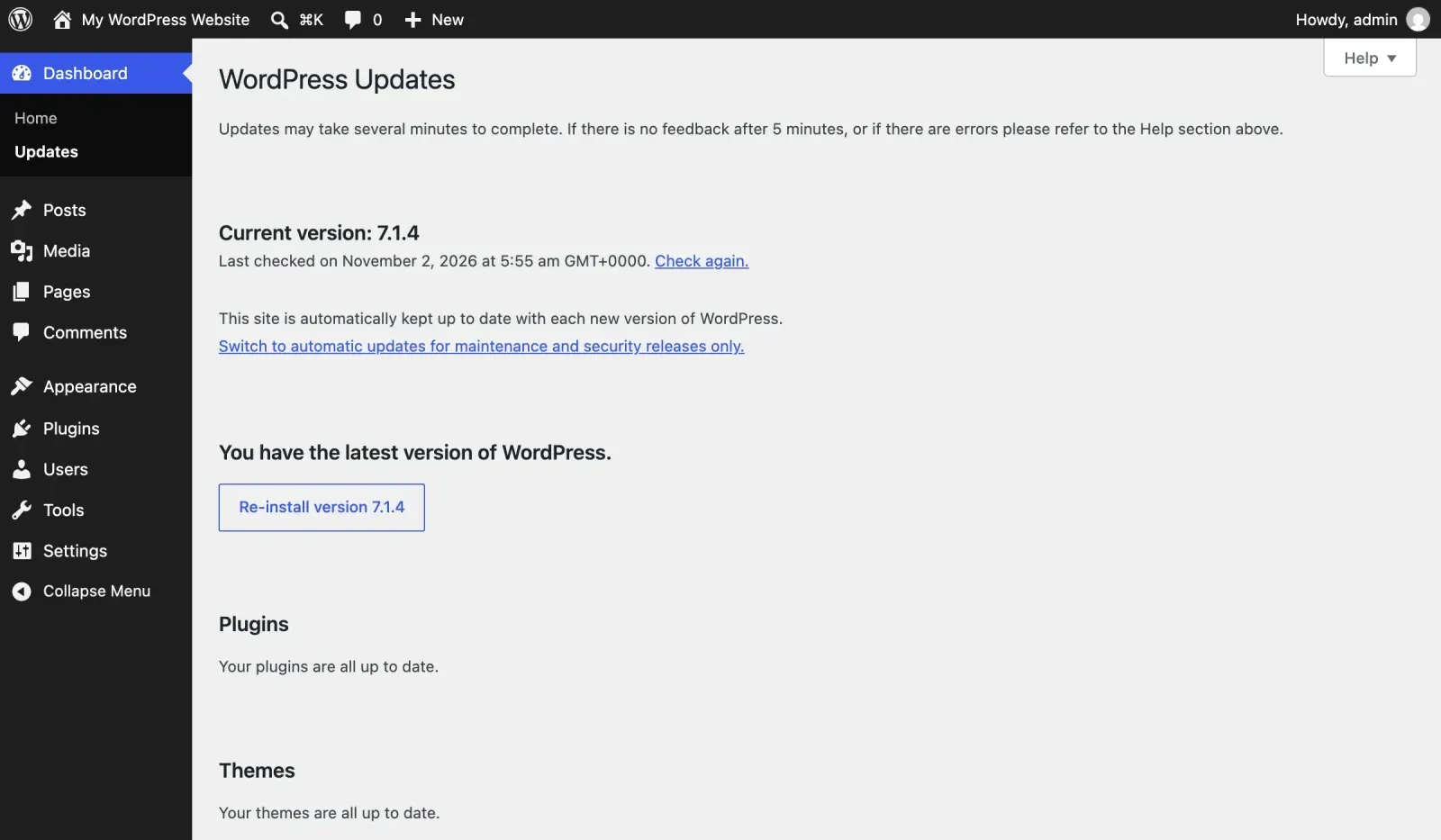
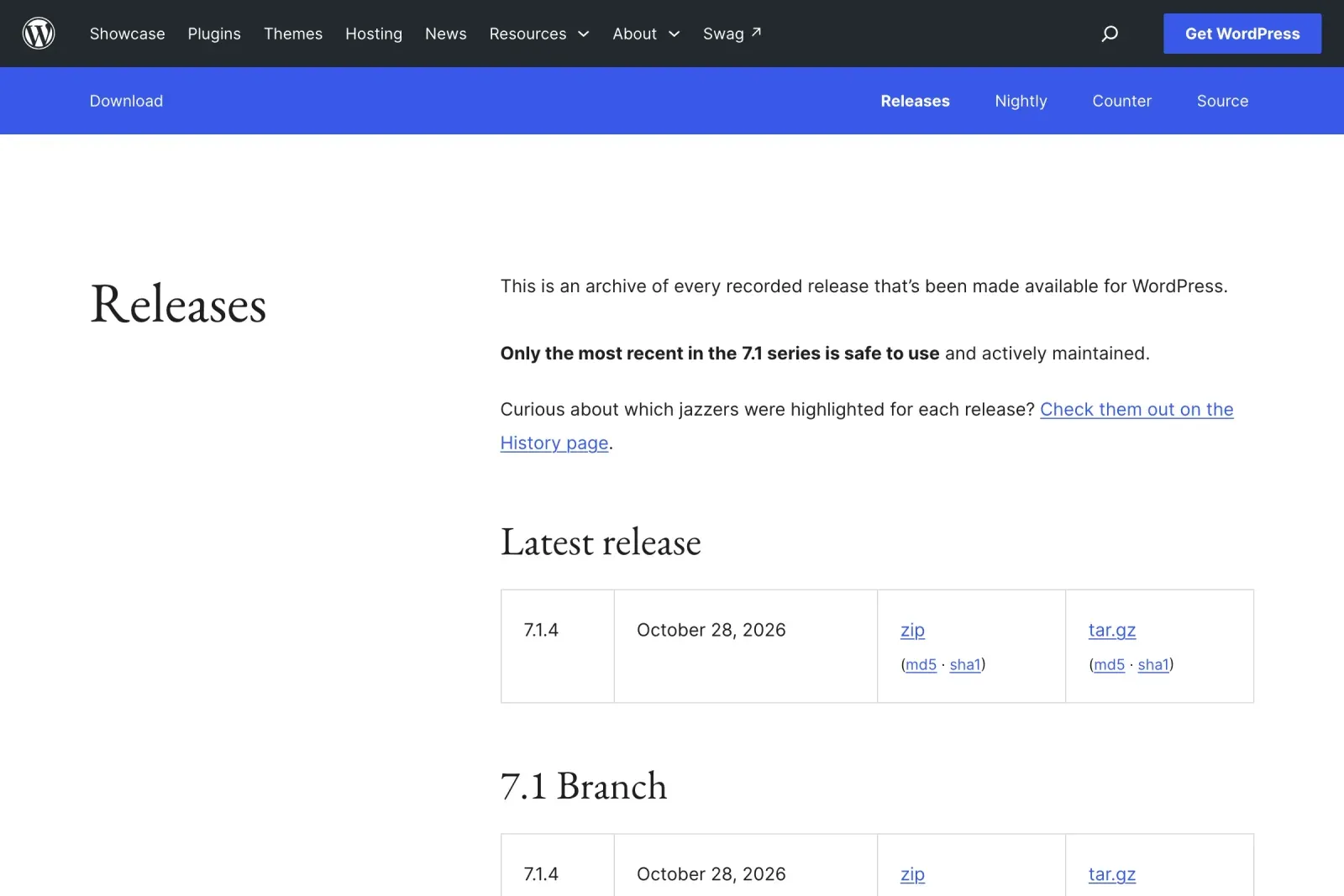
Log in once a week and apply updates. Before a major update on a site that earns money, test it on a staging copy first, because an update can also break a layout. If a plugin has not been updated by its author in over a year, replace it; it will not get a security patch when one is needed.
2. Delete what you do not use
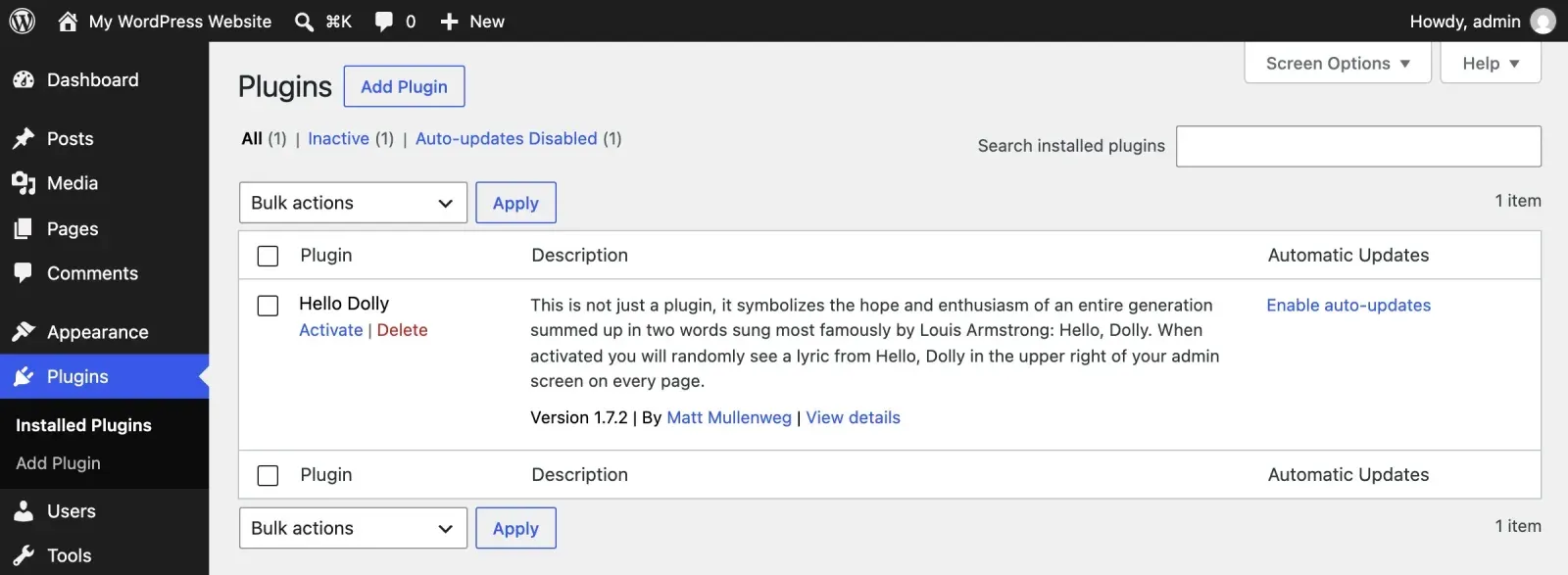
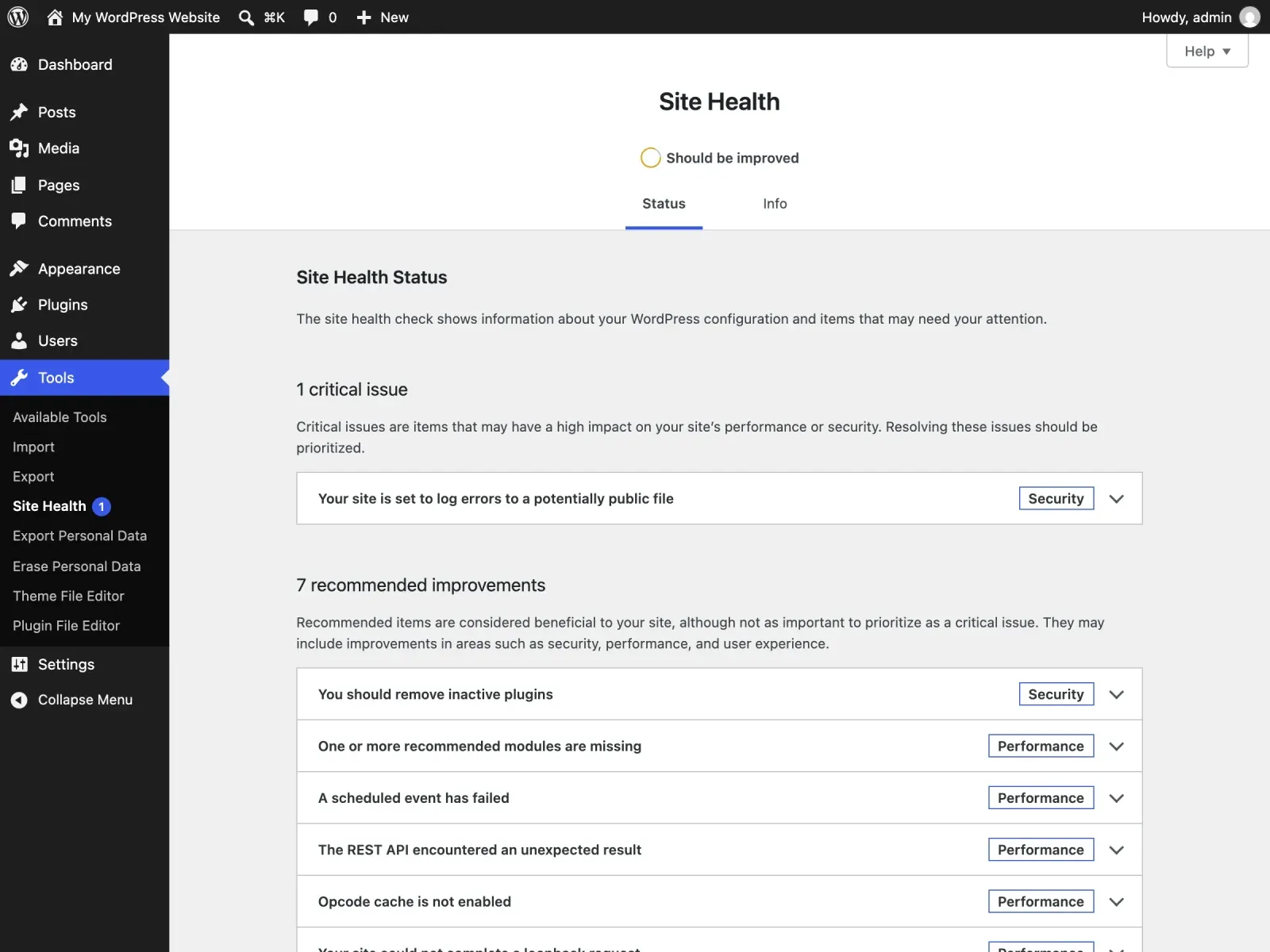
Deactivated plugins and unused themes still sit on the server and can still be exploited. Delete them. A typical business site needs between eight and fifteen plugins; if yours has forty, that is forty doors.
3. Rename the admin account and use long passwords
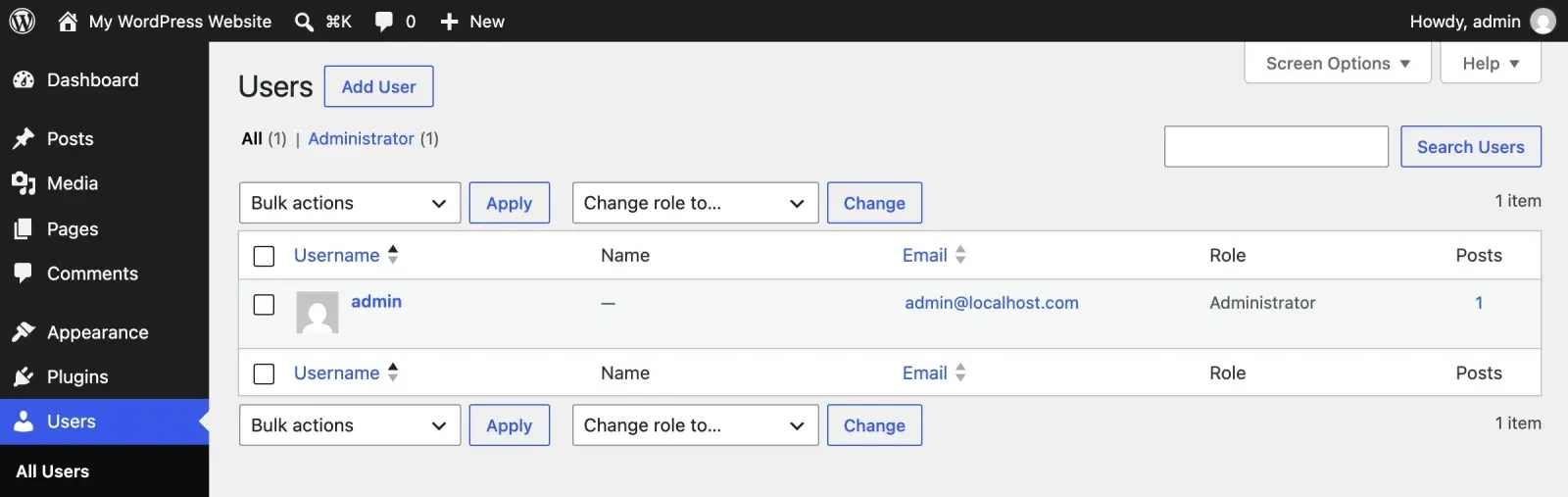
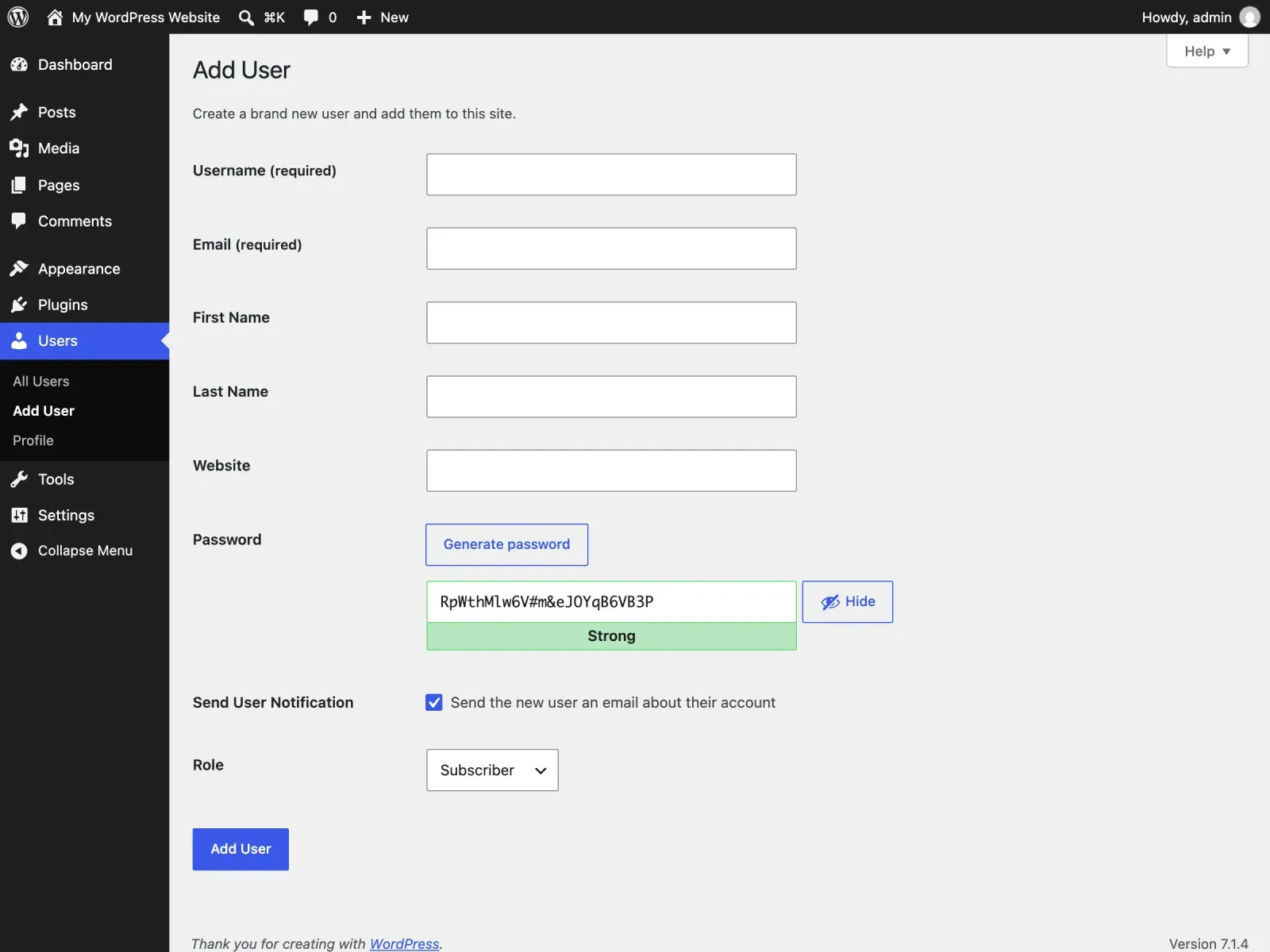
Create a new administrator with a different username, log in as that user, and delete the old “admin” account (WordPress will ask you to reassign its content). Use a password manager and let it generate twenty characters or more. Do this for the hosting control panel, the database and your email too, because a hacked email account resets every other password.
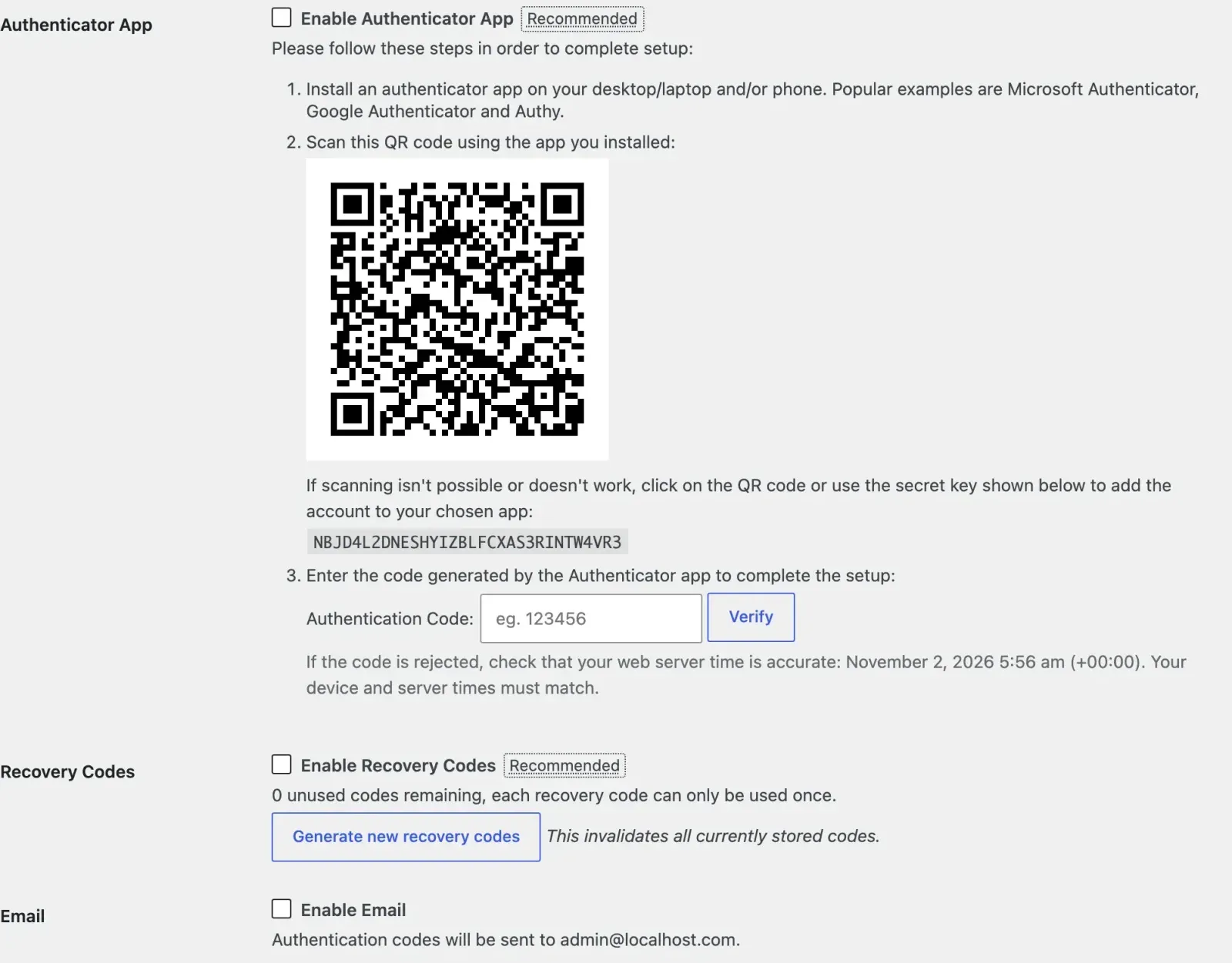
4. Turn on two-factor authentication
A free plugin adds a six-digit code from an app on your phone to the login. Even a stolen password then fails. Turn it on for every administrator and editor account.
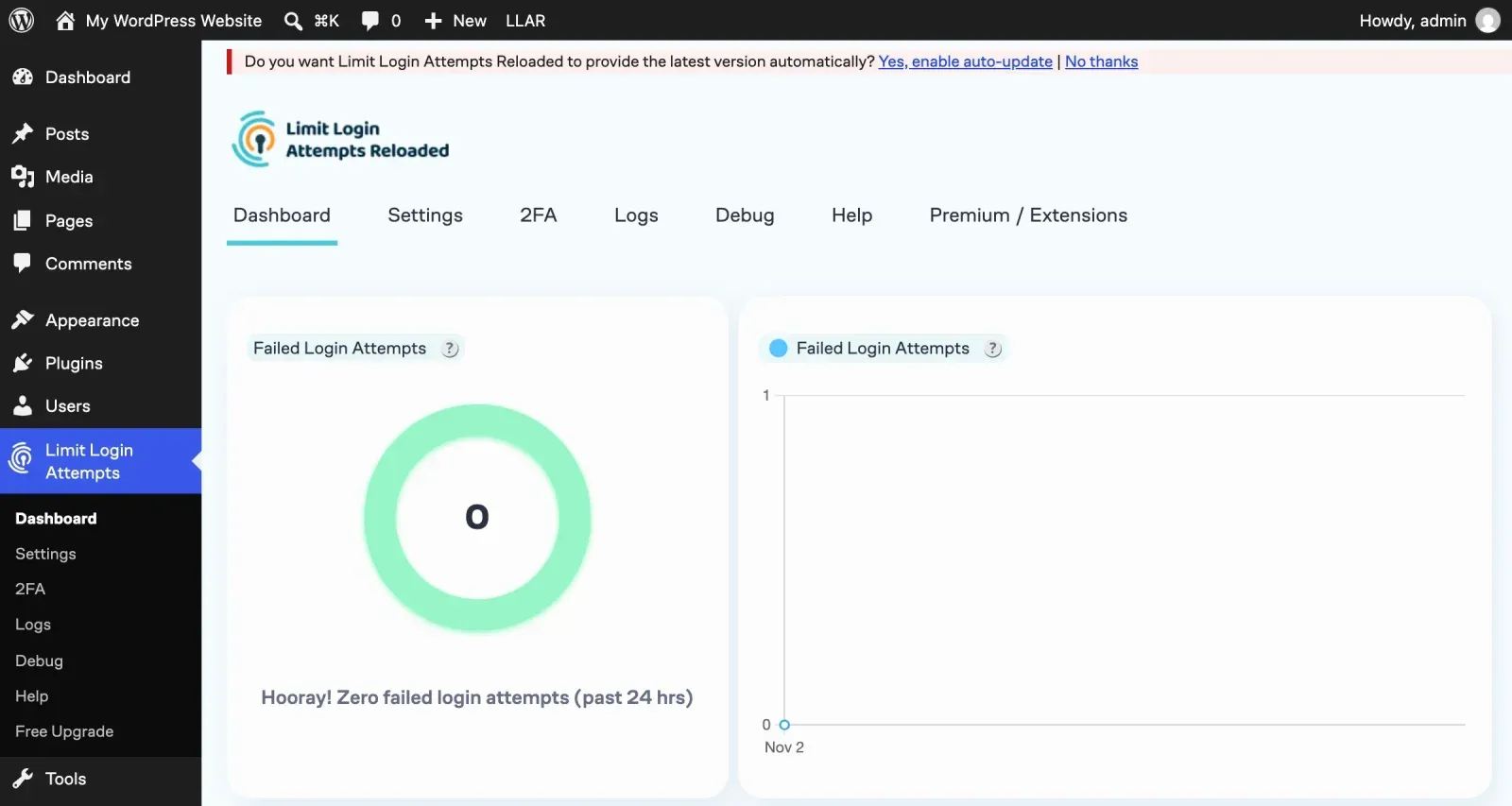
5. Limit login attempts and hide nothing else
A limit of five failed attempts followed by a lockout stops password guessing. Moving the login page to a secret address is popular advice; it stops only the laziest scripts and breaks some plugins, so I rarely bother. The lockout and the second factor do the real work.
6. Review who has an account
Open Users and read the list. Former staff, an agency from two redesigns ago, the intern’s test account: remove them or drop them to a subscriber role. Give editors the editor role, not administrator.
The five built-in WordPress roles, and who should get each one:
7. Install an SSL certificate and force HTTPS
Most Malaysian hosts include a free certificate; turn it on and make sure every page redirects from http to https. Browsers mark sites without it as not secure, which costs you enquiries before it costs you anything else.
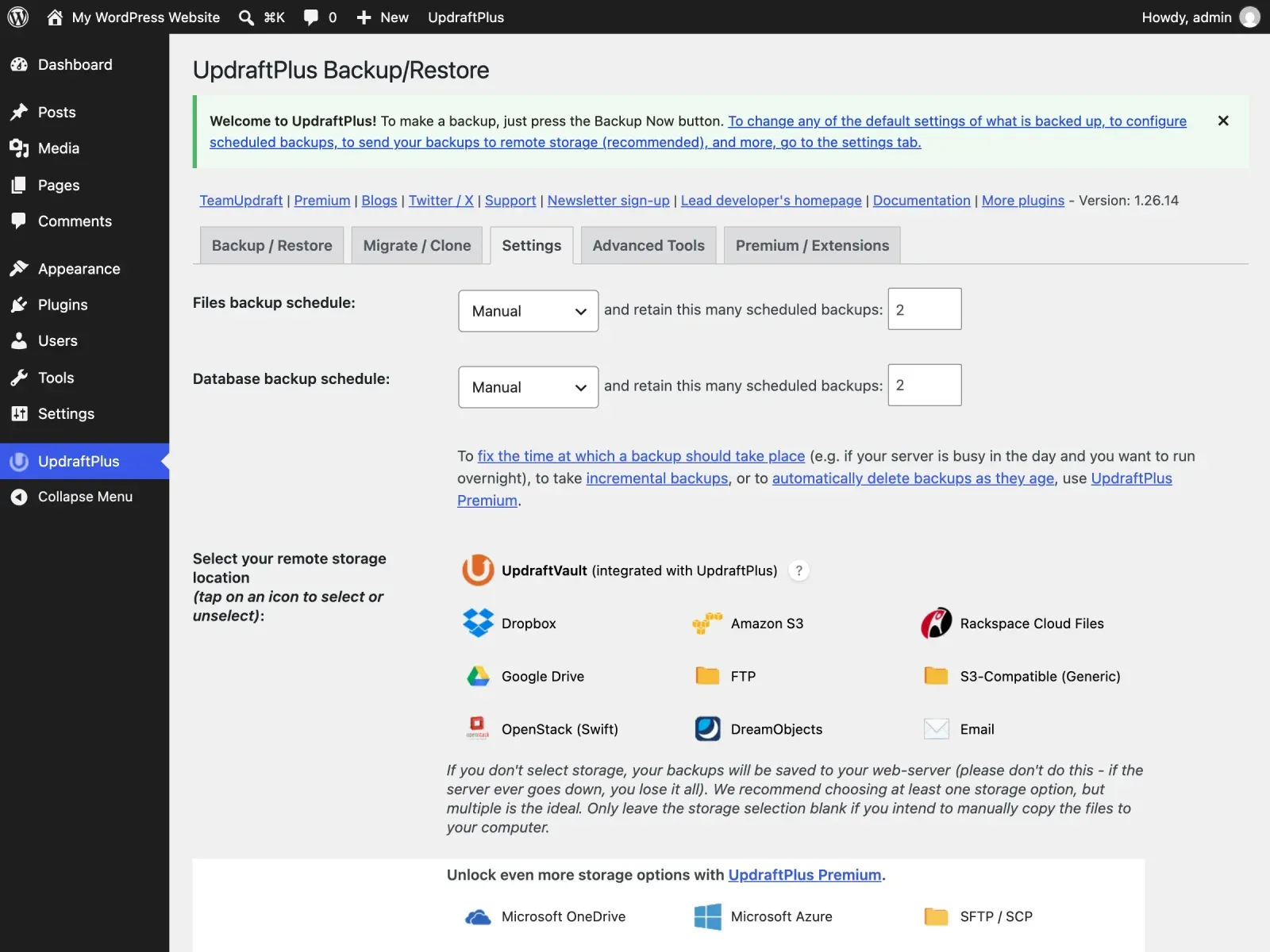
8. Take backups off the server, daily
A backup stored on the same hosting account disappears with the account. Use a plugin or the host’s tool to send daily backups to cloud storage, keep at least thirty days, and once a quarter actually restore one onto a staging site to prove it works. A backup you have never restored is a hope, not a backup.
The rule most people use is 3-2-1: three copies, on two kinds of storage, one of them off-site.
| Copy | Where it lives | What it survives |
|---|---|---|
| 1. The live site | Your hosting account | Nothing; it is what you are protecting |
| 2. The host’s backup | The host’s backup system | A bad update or a deleted page |
| 3. The off-site copy | Cloud storage you control | A hacked, suspended or closed hosting account |
9. Choose hosting that isolates accounts
Ask your host whether accounts are isolated from each other and whether they run a web application firewall. If the answer is vague, move. In Malaysia a managed WordPress plan costs a few hundred ringgit a year more than the cheapest shared plan and removes an entire category of problems.
10. Add a firewall and malware scanning
A security plugin or a service in front of the site filters known attack patterns and scans the files every day. Set it to email you when something changes that should not. This is the item that tells you a problem exists before Google or a customer does.
11. Harden the file system
Three small changes that a developer can do in ten minutes: turn off file editing from the WordPress dashboard, set correct file permissions, and block PHP from running inside the uploads folder. They stop an attacker who gets a foothold from turning it into full control. Mark this one for your developer.
What each of the three changes does. The first is one line in wp-config.php that sets DISALLOW_FILE_EDIT to true:
| Change | What it stops |
|---|---|
| Dashboard file editing off | A stolen login rewriting theme or plugin code |
| Permissions 644 for files and 755 for folders | Other processes changing your files |
| No PHP in the uploads folder | An uploaded script running as a page |
12. Protect forms from abuse
Contact and quotation forms get flooded with spam and sometimes used to send email through your server. Add a modern spam check (reCAPTCHA v3 or an equivalent), rate-limit submissions, and never let a form upload files you do not need.
13. Keep the database tidy and the keys fresh
Old post revisions, expired transients and spam comments bloat the database and slow the site. Clean them quarterly. If you have ever shared your login with someone you no longer work with, rotate the WordPress security keys in the configuration file so every existing session is logged out.
14. Monitor uptime and watch Search Console
A free uptime monitor messages you when the site goes down. Google Search Console emails you when it detects hacked content or malware. Both are free and both are ignored by most business owners until the day they matter.
If your site is hacked: recovery in order
Signs are usually a redirect to another site, pages you did not write, a warning in Google Search results or a browser, or your host suspending the account. Work through these steps in order and do not skip ahead to the restore.
- Take a copy of the infected site first. Even if you plan to wipe it, a copy helps find how the attacker got in.
- Put the site in maintenance mode or offline. This protects visitors and stops further damage while you work.
- Change every password from a clean computer. That means WordPress admins, hosting panel, database, FTP or SFTP and the email account used for resets. Log out all sessions.
- Find the last clean backup. Check its date against when the problem first appeared. A backup taken after the infection restores the infection.
- Restore, then update everything immediately. Core, theme and every plugin. An unpatched hole will be used again within hours.
- Look for what was left behind. Unknown administrator accounts, unfamiliar plugins, odd files in the uploads folder and changed scheduled tasks are the usual backdoors.
- Find and close the entry point. Without this you are cleaning the same site again next month.
The same seven steps as a flow:
If you cannot tell which backup is clean, or the host has suspended the account, stop and get help before you restore anything.
How to vet a plugin before installing it
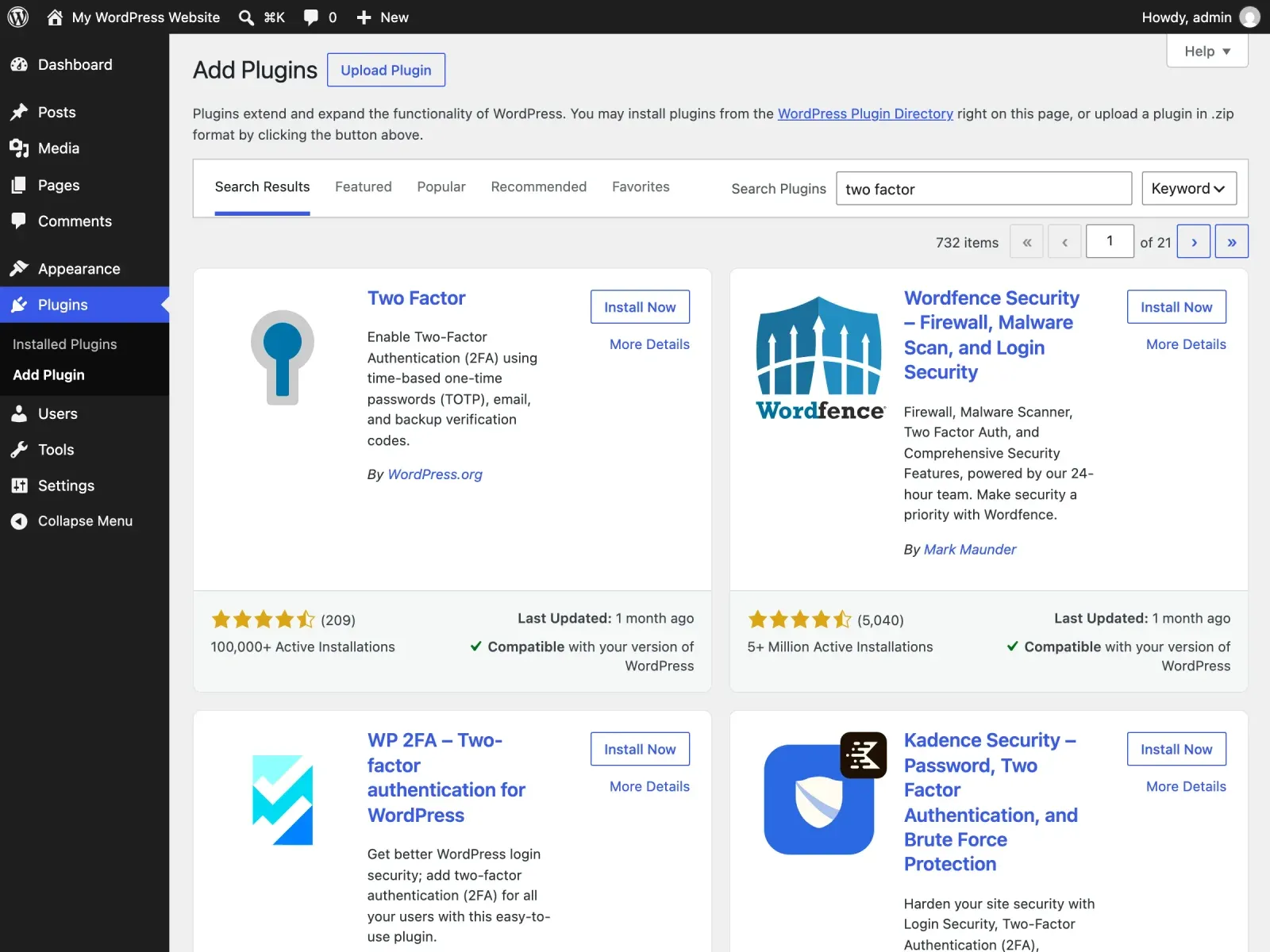
Most of the plugins on a hacked site were installed in a hurry. Before adding one, check four things in the WordPress plugin directory: when it was last updated, how many active installs it has, whether the author answers support threads, and whether it is compatible with your current WordPress version. A plugin with few installs, no updates in a year and unanswered questions is a risk.
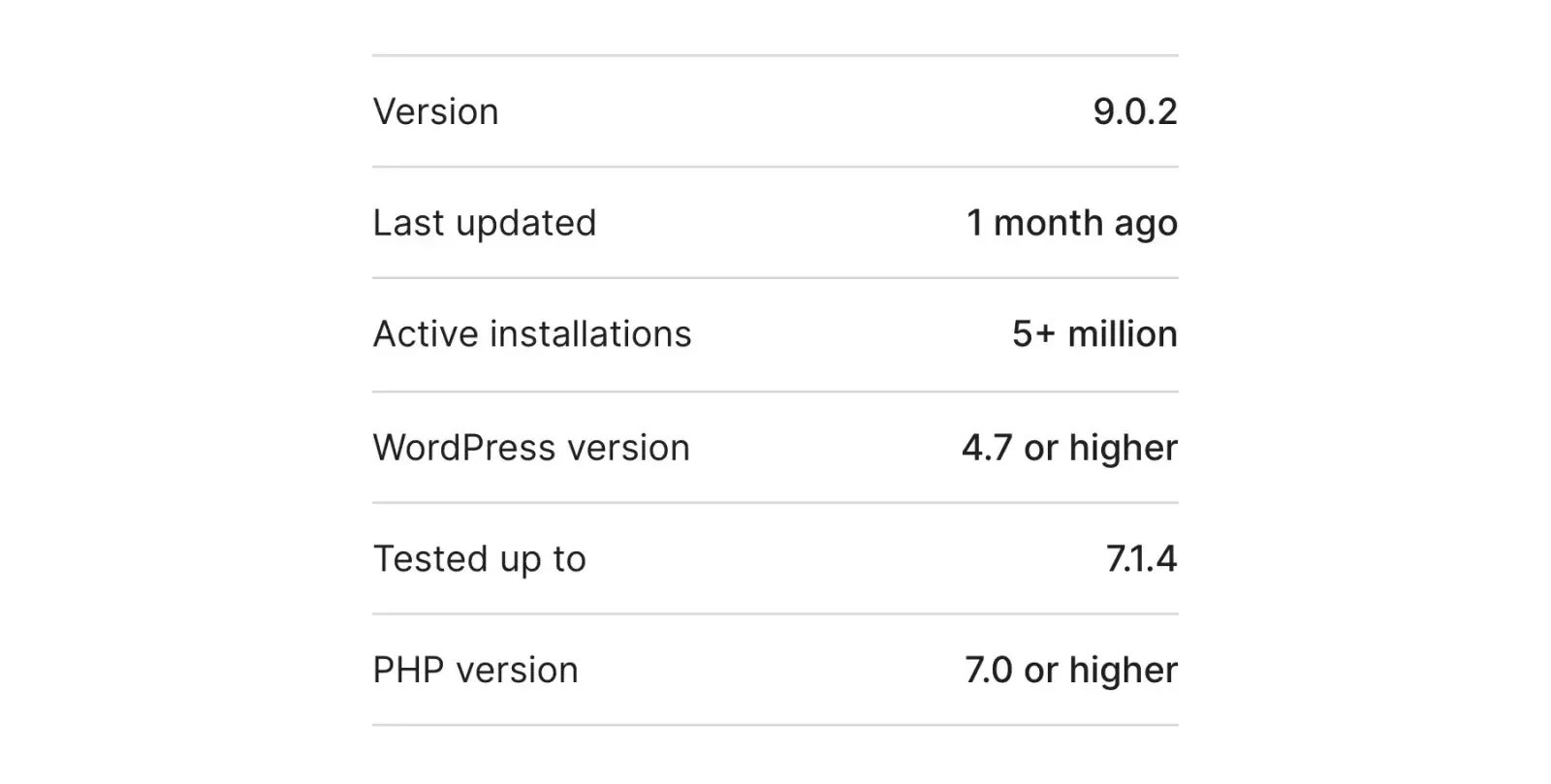
| Signal | Good sign | Warning sign |
|---|---|---|
| Last updated | Recent months | Over a year ago |
| Active installs | Tens of thousands | A few hundred |
| Support threads | Author replies | No replies |
| Tested up to | Your version | Versions behind |
| Source | Official directory | A nulled copy |
Be careful with “nulled” or pirated copies of paid plugins and themes. They are a common way for malware to arrive, and you lose the updates that would patch problems. Buy from the author, or use a free alternative that is actively maintained.
What a good host should give you
Security is shared between you and the host, and you should know which part is theirs. Ask before you sign up or renew:
- Is each account isolated from other customers on the server?
- Is there a web application firewall, and who maintains it?
- Are automatic backups included, how long are they kept and can you download them?
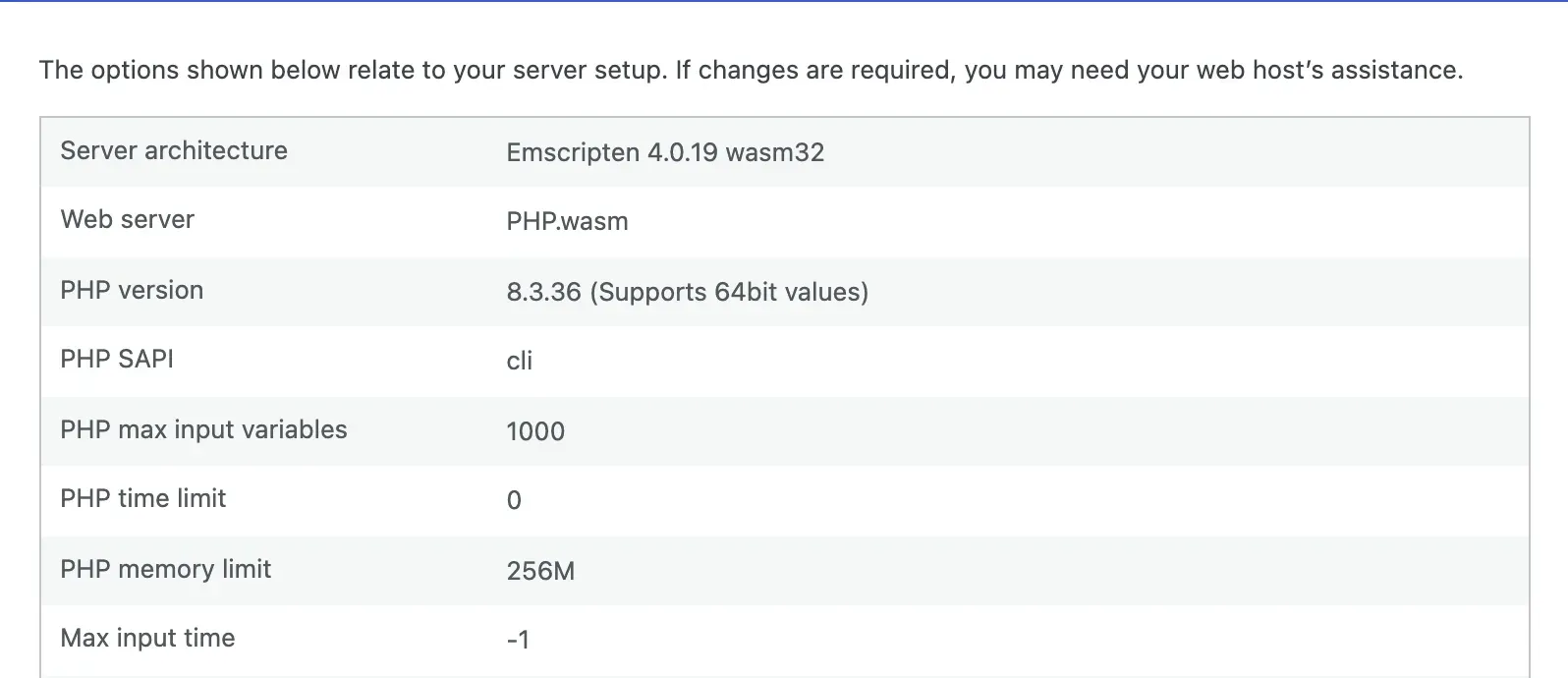
- Is the PHP version current and can you change it yourself? Old PHP versions stop receiving security fixes.
- Do they offer free SSL, and do they support SFTP or SSH instead of plain FTP?
What good and weak answers sound like:
| Ask about | Good answer | Warning sign |
|---|---|---|
| Account isolation | Explained clearly | “It should be fine” |
| Firewall | Included, maintained | “Install a plugin” |
| Backups | Daily, downloadable | Weekly, no download |
| PHP version | Current, switchable | Old, locked |
| Access | SFTP or SSH, free SSL | Plain FTP only |
Personal data and your contact forms
If your website collects names, phone numbers or email addresses through a form, you are handling personal data. Malaysia’s Personal Data Protection Act 2010 sets obligations for businesses that process personal data in commercial transactions, including taking practical steps to protect it. I am not a lawyer, so check your own position with one. The basics are plain: collect only what you need, keep form submissions behind a login-protected admin, delete old enquiries you no longer need, and make sure a hacked site cannot expose a full archive of customer messages. Securing the site and protecting that data are the same work.
A quick way to apply “collect only what you need” to an ordinary enquiry form:
| Form field | Needed for an enquiry? | Note |
|---|---|---|
| Name | Yes | So you know who you are replying to |
| Phone or WhatsApp number | Yes | Lets you reply on WhatsApp |
| Optional | Useful for quotations | |
| IC number | No | Never ask for it on a contact form |
| Home address | Only for deliveries | Leave it off a general enquiry form |
| File upload | Rarely | Every upload field is another way in |
What a monthly routine looks like
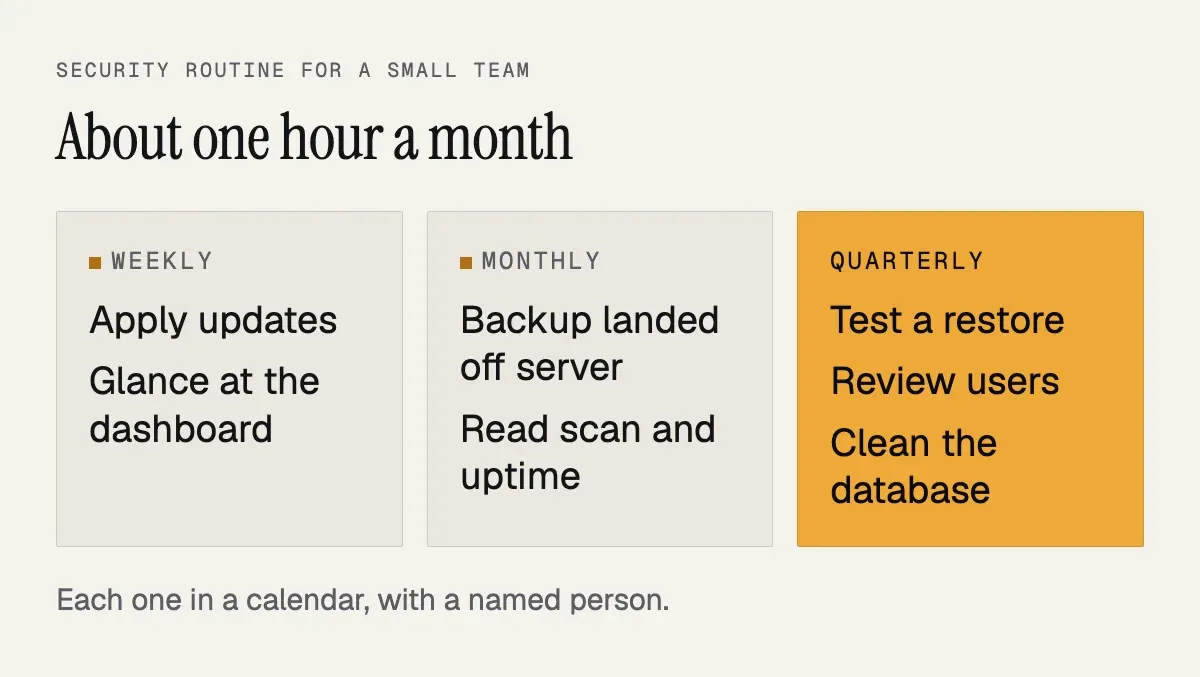
Done properly this is about an hour a month: apply updates on staging, then on the live site; check the backup landed; read the security scan and the uptime report; review the user list; run a speed check so you notice regressions early. The point is that it is done every month without fail. The moment it depends on someone remembering, it stops.
A simple split that works for most small teams: weekly, apply updates and glance at the dashboard; monthly, confirm the off-server backup exists and read the scan and uptime reports; quarterly, restore a backup to a test site, review user accounts and clean the database. Put all three in a calendar with a named person.
That is what the Website Care Plan is: the routine above, done for you, tested before it touches the live site, with a short note each month on what was done. It starts at RM250 a month for a business website. If you prefer to do it yourself, this list is enough; just put the first reminder in your calendar now.
If you are not sure where your site stands
Send me the website address on WhatsApp and I will tell you what state it is in: how out of date it is, whether it is on a host that isolates accounts, and whether a backup exists anywhere. The check is quick, and knowing is better than hoping. Prices for the plan and everything else are on the pricing page.